Implement ReKeepIt widget
Next, we need to get the widget to show up in the store. To do so, we will need to customize the theme. This process may vary slightly depending on what theme you are currently using, but this should work for the majority of cases. If you have trouble with this step, please feel free to contact us for assistance.
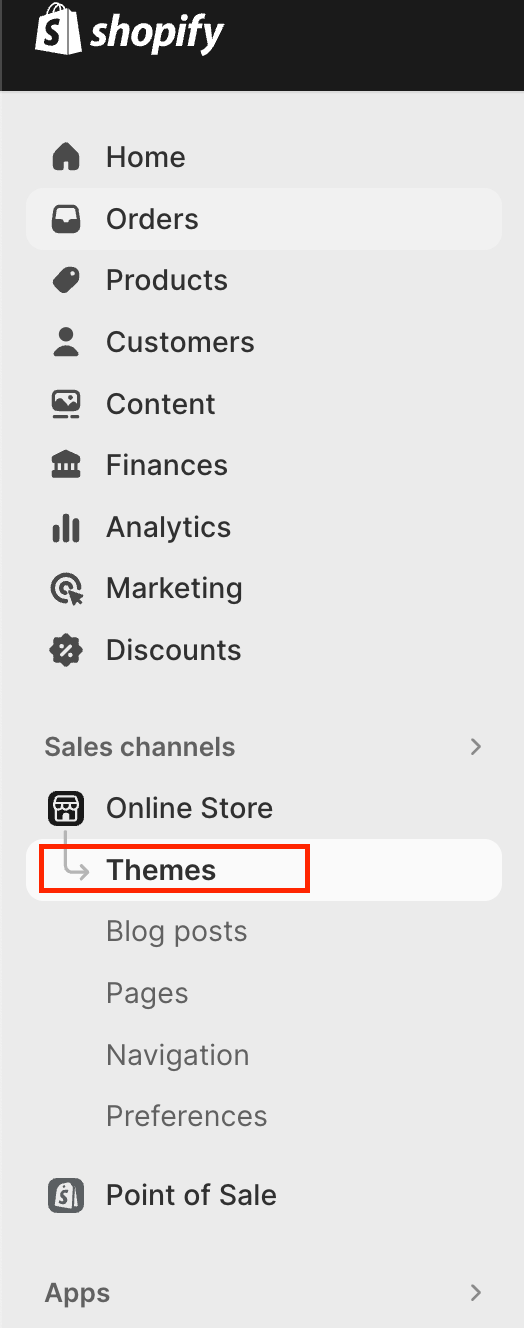
- Starting from the Shopify store admin sidebar, navigate to the Online Store > Themes section
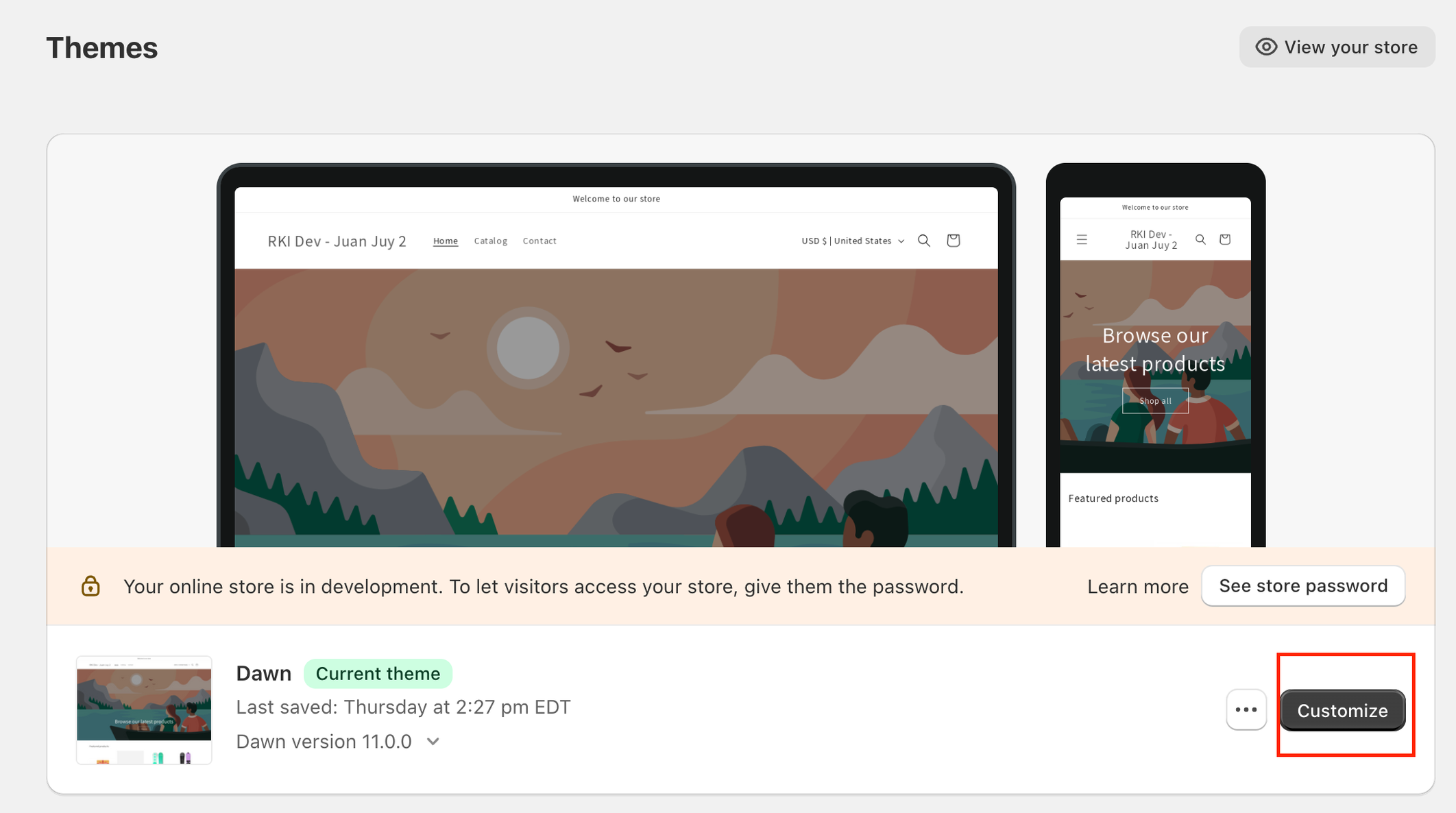
- Customize your current theme
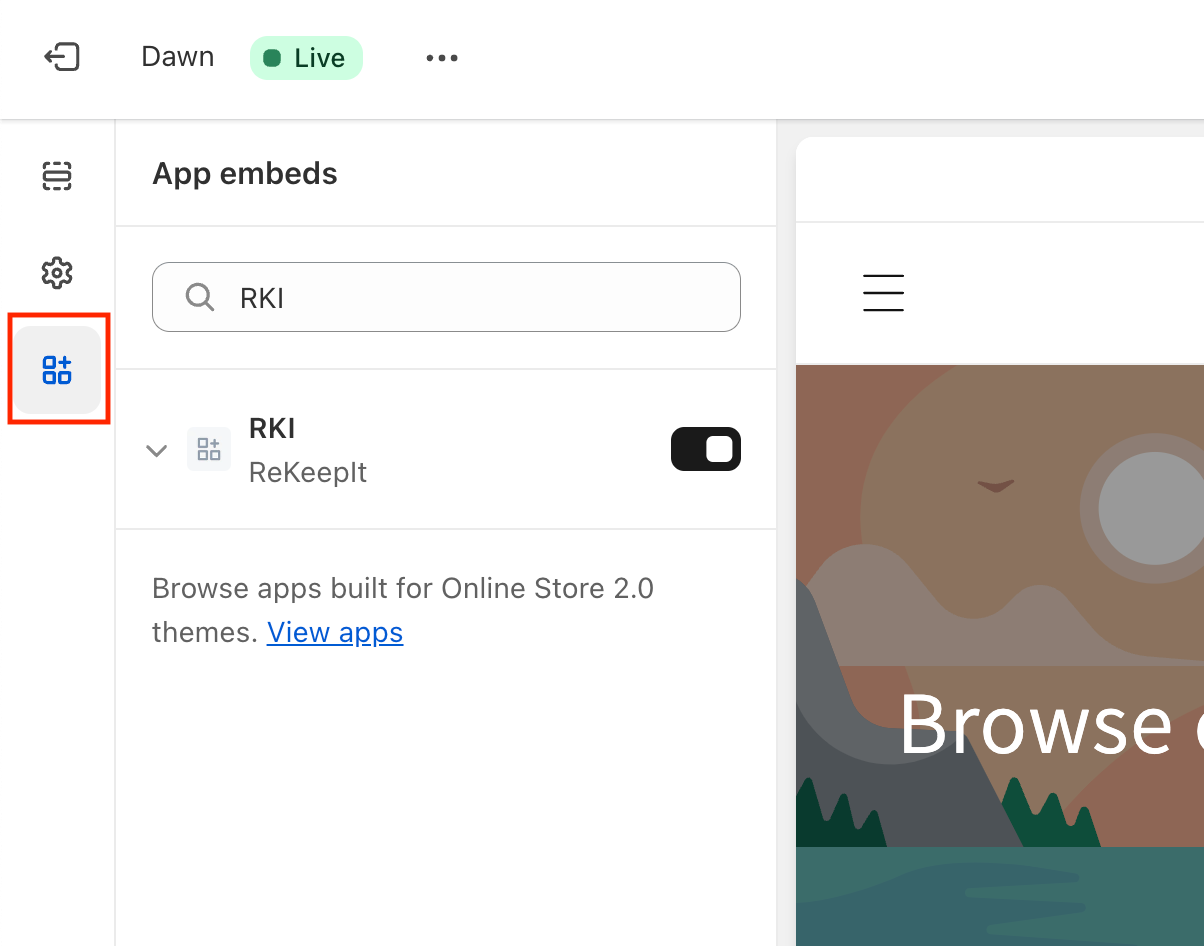
- On the left side of the theme editor, click on the App embeds icon and search for RKI. If it's not already enabled, enable it
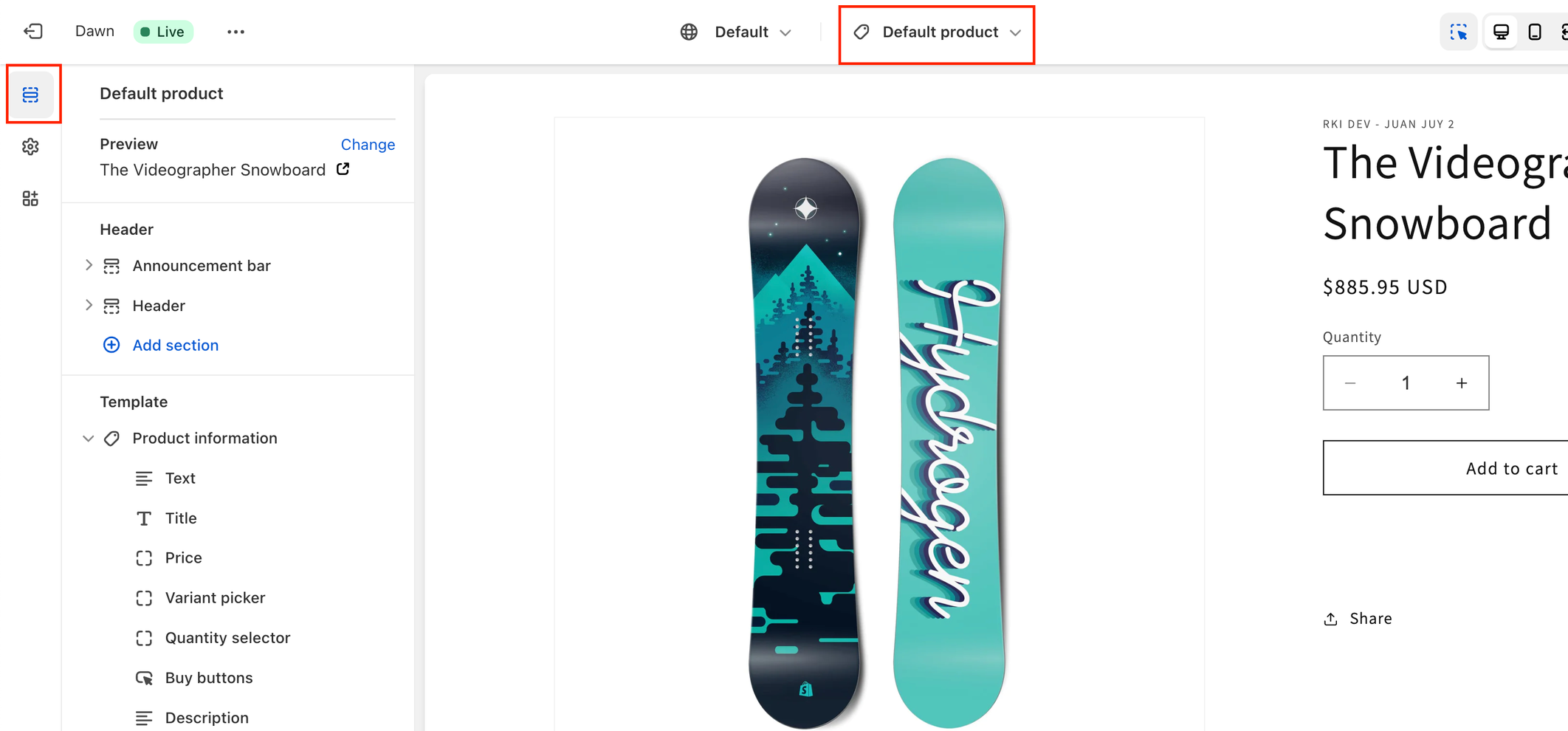
- On the left side of the theme editor, click on the Sections icon. Then, at the top of the page, change the view to your product page
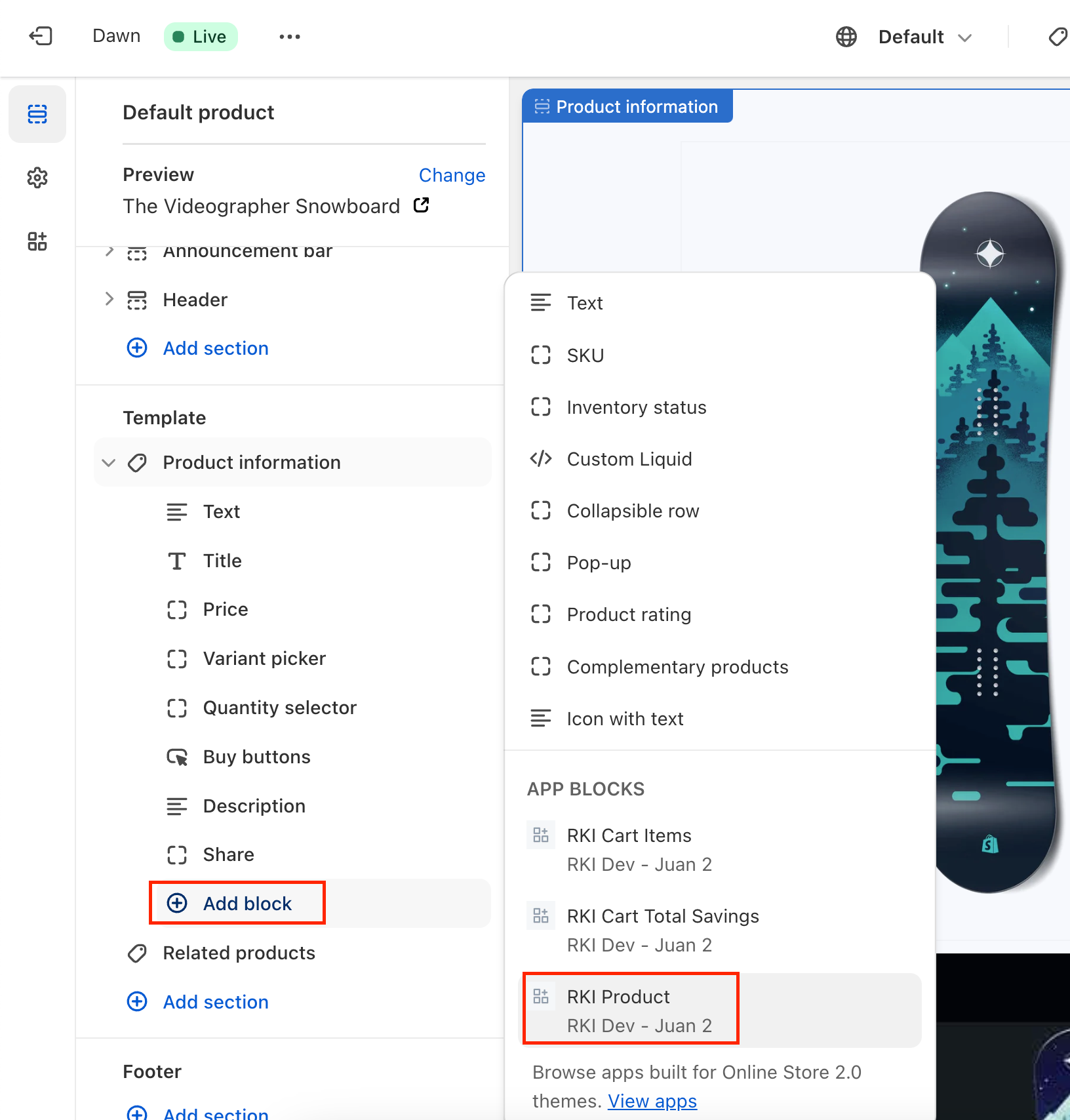
- In the Template section on the left side, within “Product information”, click on “Add block” and click on the “RKI Product” block
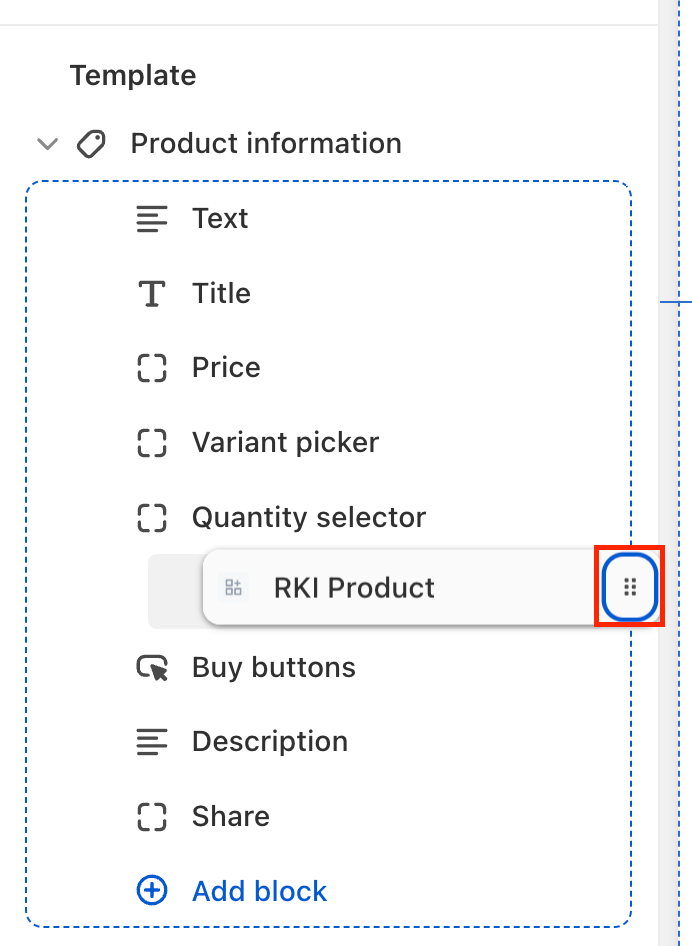
- Using the drag handle (icon with the 6 dots), drag the RKI Product block to your desired position. We recommend placing it directly above the Buy buttons
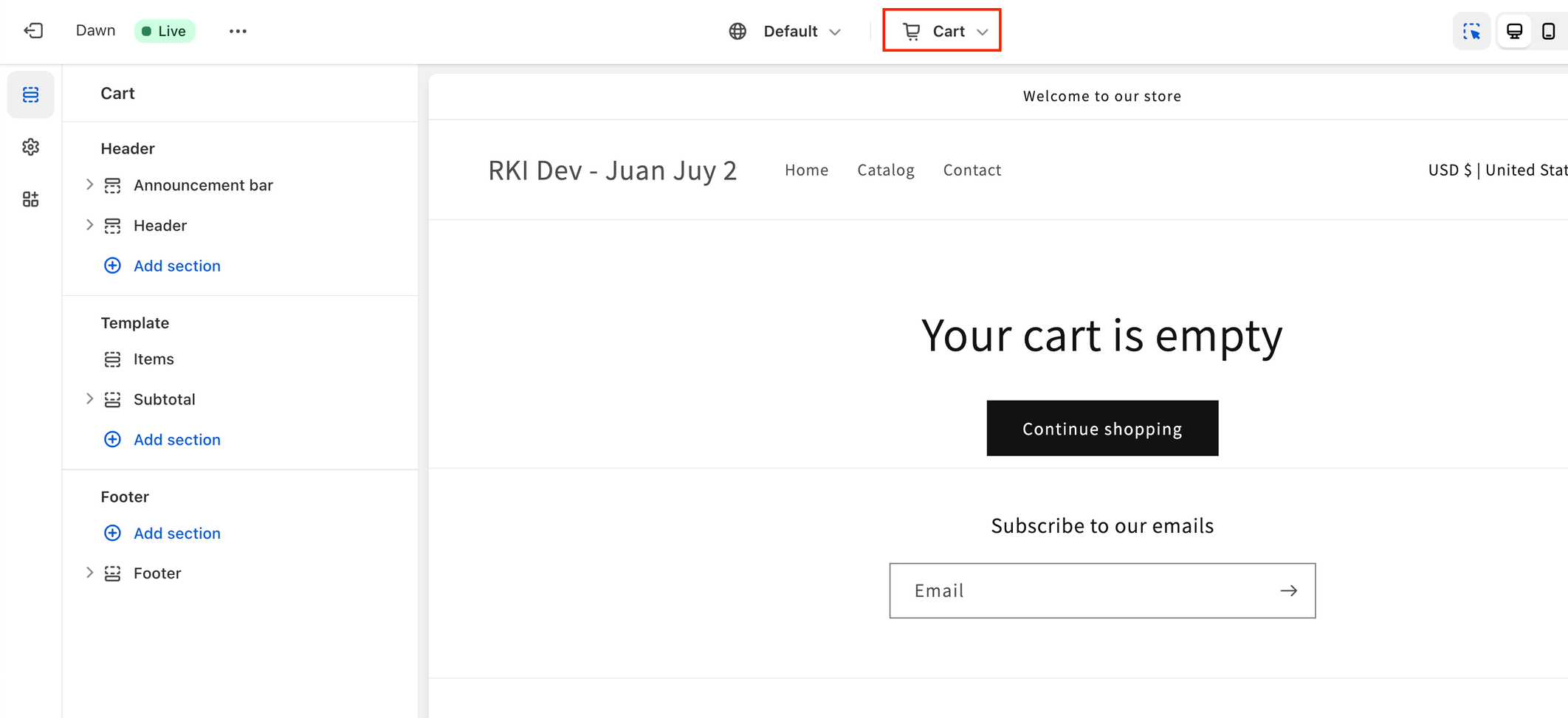
- At the top of the page, change the view to your cart page
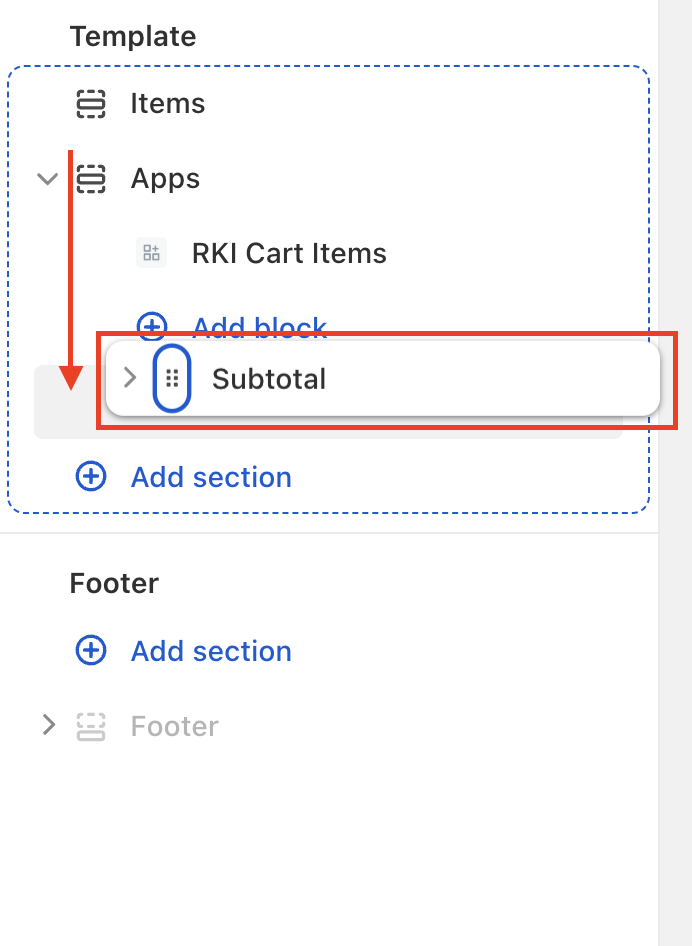
- Again, under Template, “Add section” > Apps > “RKI Cart Items”
- In the preview, you may notice that your cart is duplicated. This is because RKI uses its own theme block for the cart in order to display properly. We’ll address the duplicate cart in the next step.
- If your "Subtotal" block isn't at the bottom, drag it to reposition it
- Click on the eye icon on your current "Items" block
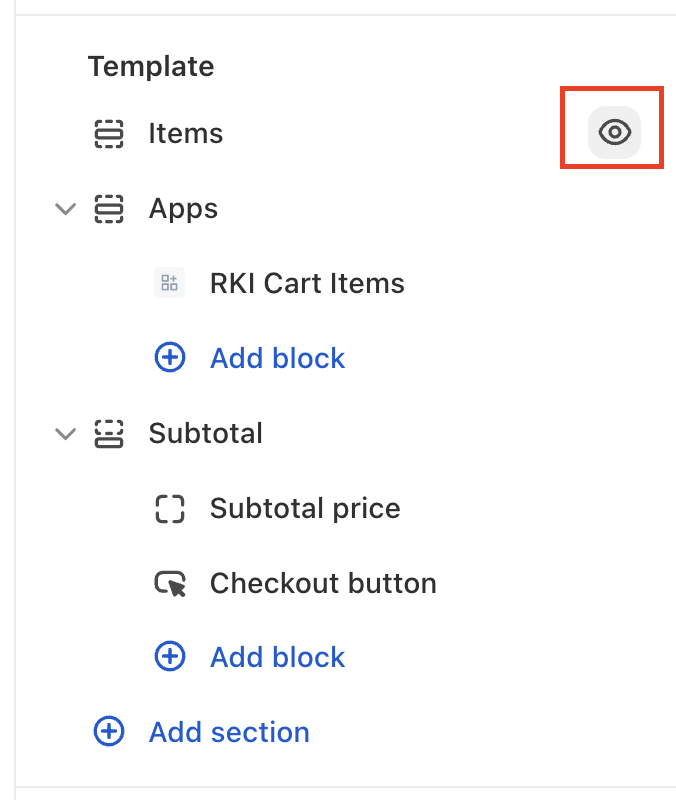
- Your template should look something like the below. It may not match exactly depending on your theme, but the important thing to note is that the RKI Cart Items app block should be either directly above or below the Items block we hid on step 10
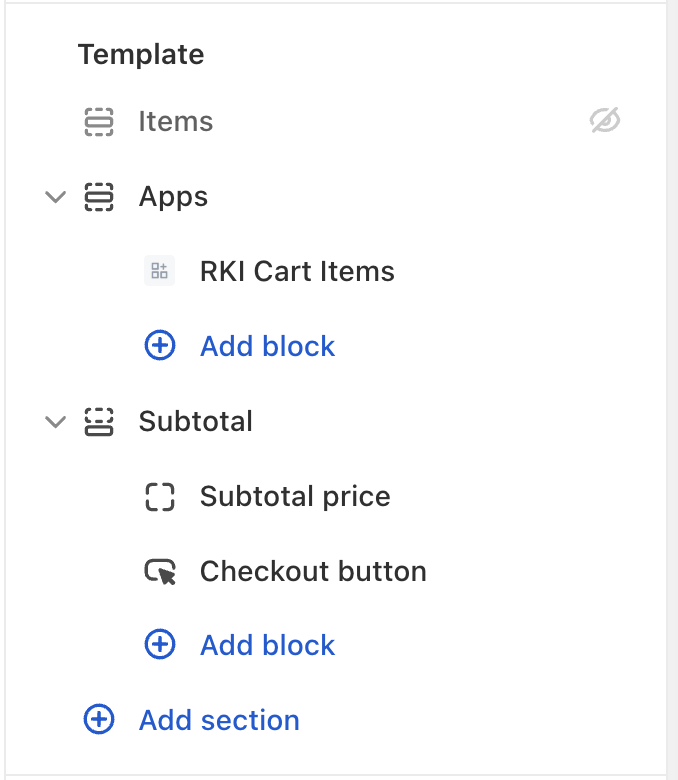
Before saving your changes, we can verify that the widgets are working as intended.
Verifying the widgets
In the top right, make sure that “Activate Inspector” is turned off
Starting from a product page with RKI on it, try clicking on the RKI checkbox. You should get a modal that asks you to sign up. Do so (you can use a fake email), and then add the item to your cart.
NOTE - not sure if it’s just me, but trying to fill in the signup form from the preview doesn’t actually work. It says “Something went wrong” even though the network request appears to have been successful
Go to your cart page. You should see the item with a discount applied, as well as the option to handle the checkbox.
Go to checkout and check your order summary. Confirm that the discount is still applied there.